Meta Tags Explained: What They Are, Why They Matter, and How to Preview Them
Meta tags control how your content appears on Google, Facebook, Twitter, and LinkedIn. Here's what they are, which ones matter, and how to check yours before you publish.
February 11, 2026 · 3 min read
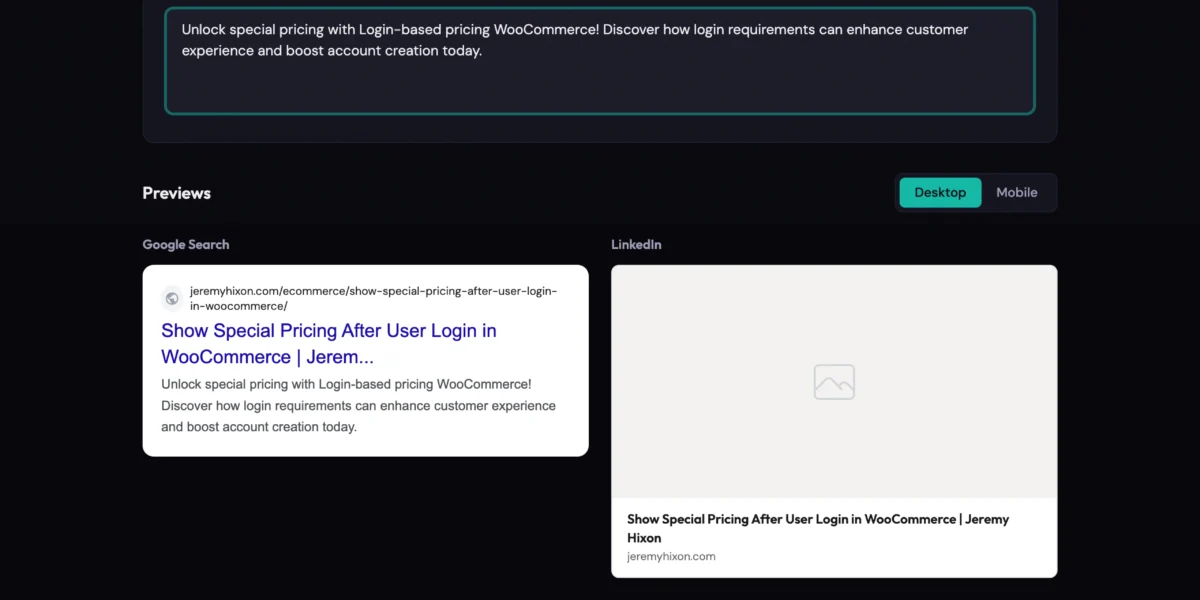
Somewhere right now, someone is sharing your latest blog post on Twitter. The preview shows a gray box, no image, a title that cuts off mid-sentence, and a description pulled from a random paragraph halfway down the page.
You have no idea this is happening. And it’s been happening every time someone shares your content, because you never checked your meta tags.
What are meta tags?
Meta tags are snippets of HTML that sit in the <head> of your webpage. Visitors never see them. Search engines and social platforms read them to figure out what your page is about and how to display it.
The blue title and gray description on a Google search result? Those come from meta tags. The preview card that shows up when someone shares your link on Facebook, with the image, title, and blurb? Also meta tags.
Think of them as the packaging around your content. The content itself might be great, but if the packaging is broken, people see a mess before they ever get to the good stuff.
The three meta tags that actually matter
There are dozens of meta tags in the spec. Most of them are irrelevant. Three categories are worth caring about as a creator.
1. Title tag
This is the headline in search results and browser tabs. It’s the single most important on-page SEO element.
Google shows roughly 50 to 60 characters before truncating, and mobile shows even less. A good title tag is specific, includes your target keyword naturally, and gives people a reason to click. “How to Grow on Instagram in 2026” is better than “Instagram Tips.” Every character has to pull its weight.
2. Meta description
The meta description is the one-to-two sentence summary below the title in search results. Google allows about 155 to 160 characters on desktop, 120 on mobile.
Google doesn’t use meta descriptions as a direct ranking factor, but they have a direct effect on your click-through rate. A good description works like ad copy for your content. A missing or weak one means Google grabs whatever random text it finds on your page, and the result is usually awkward.
3. Open Graph and Twitter Card tags
These control what your content looks like when shared on social platforms:
og:titlesets the title in social preview cardsog:descriptionsets the descriptionog:imagesets the preview image (this is the one that matters most)twitter:cardtells Twitter/X what card format to use
Without these, platforms fall back to your regular title and description, and they pick whatever image they find first on your page. Sometimes that’s your logo. Sometimes it’s a sidebar ad. Sometimes the preview is completely blank.
How different platforms read your meta tags
Each platform has its own quirks, which is why something can look fine on Google and completely broken on Facebook.
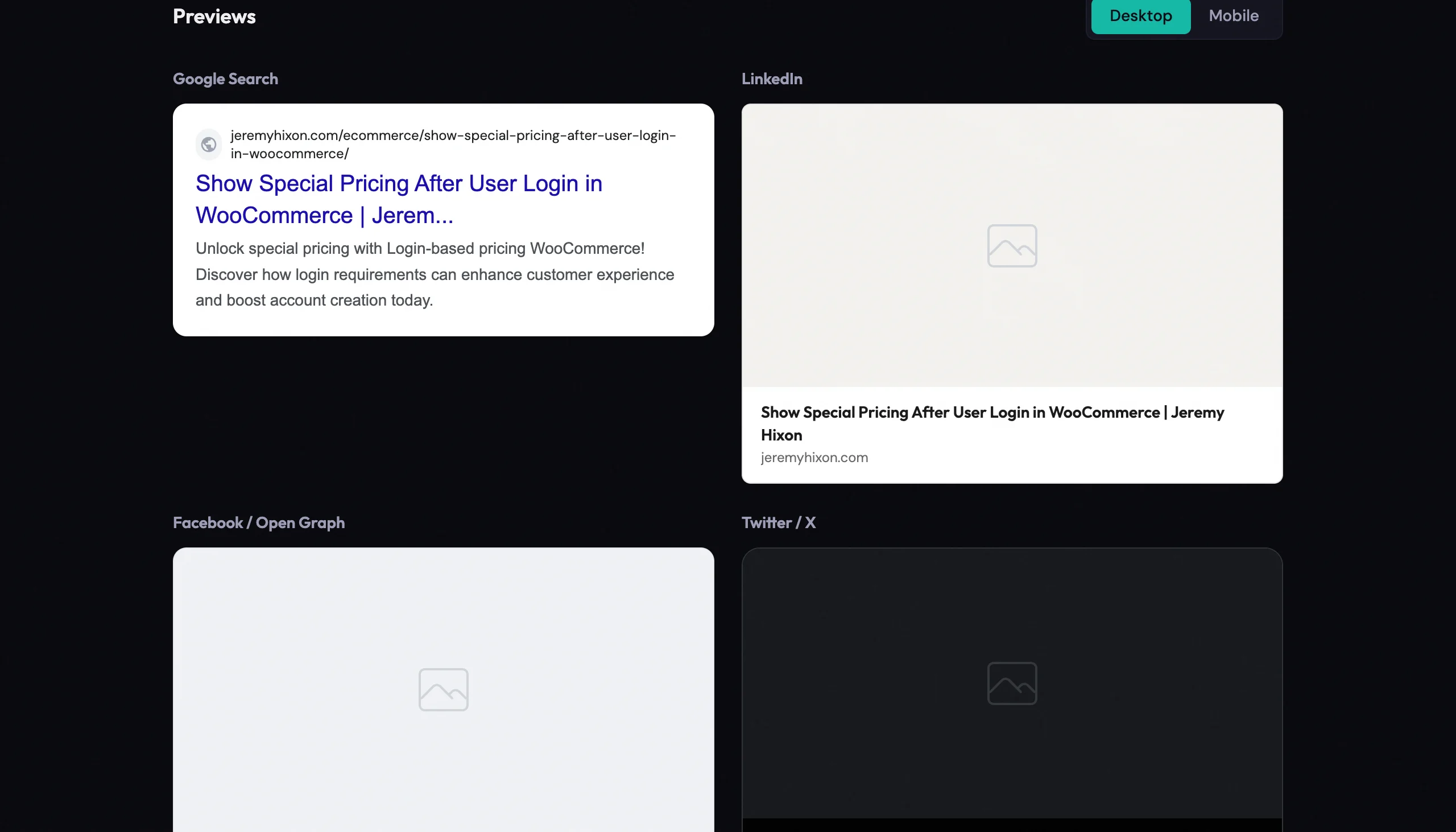
Google Search pulls from your title tag and meta description but reserves the right to rewrite them if it thinks it can do better. Keeping your title under 60 characters and description under 160 reduces the chance of Google improvising.
Facebook reads Open Graph tags (og:title, og:description, og:image) and prefers images at 1200×630 pixels. If there’s no og:image, Facebook scrapes your page for one. The results are unpredictable.
Twitter/X checks for Twitter Card tags first, then falls back to Open Graph. Images for “summary_large_image” cards work best at 1200×628 pixels.
LinkedIn reads Open Graph tags too, but caches previews aggressively. Fix a bad preview and LinkedIn might keep showing the old one for a while. (You can force a refresh with their Post Inspector tool, but most people don’t know it exists.)
Meta tag best practices
Title tag:
- Keep it under 60 characters
- Front-load important keywords
- Be specific (“How to Grow on Instagram in 2026” beats “Instagram Tips”)
- Don’t stuff keywords
Meta description:
- Stay under 155 characters to avoid truncation
- Write it like ad copy: clear value proposition, active language
- Don’t just repeat the title
Social images:
- Use 1200x630px for universal compatibility
- Always set an og:image explicitly
- Keep text on the image minimal (platforms crop differently)
- Test on mobile and desktop since images render at different aspect ratios
How to check your meta tags before publishing
The old-school approach: publish your page, paste the URL into Facebook’s Sharing Debugger, then Twitter’s Card Validator, then Google your title to see if it truncates. Three tools, three tabs, no real-time feedback as you tweak things.
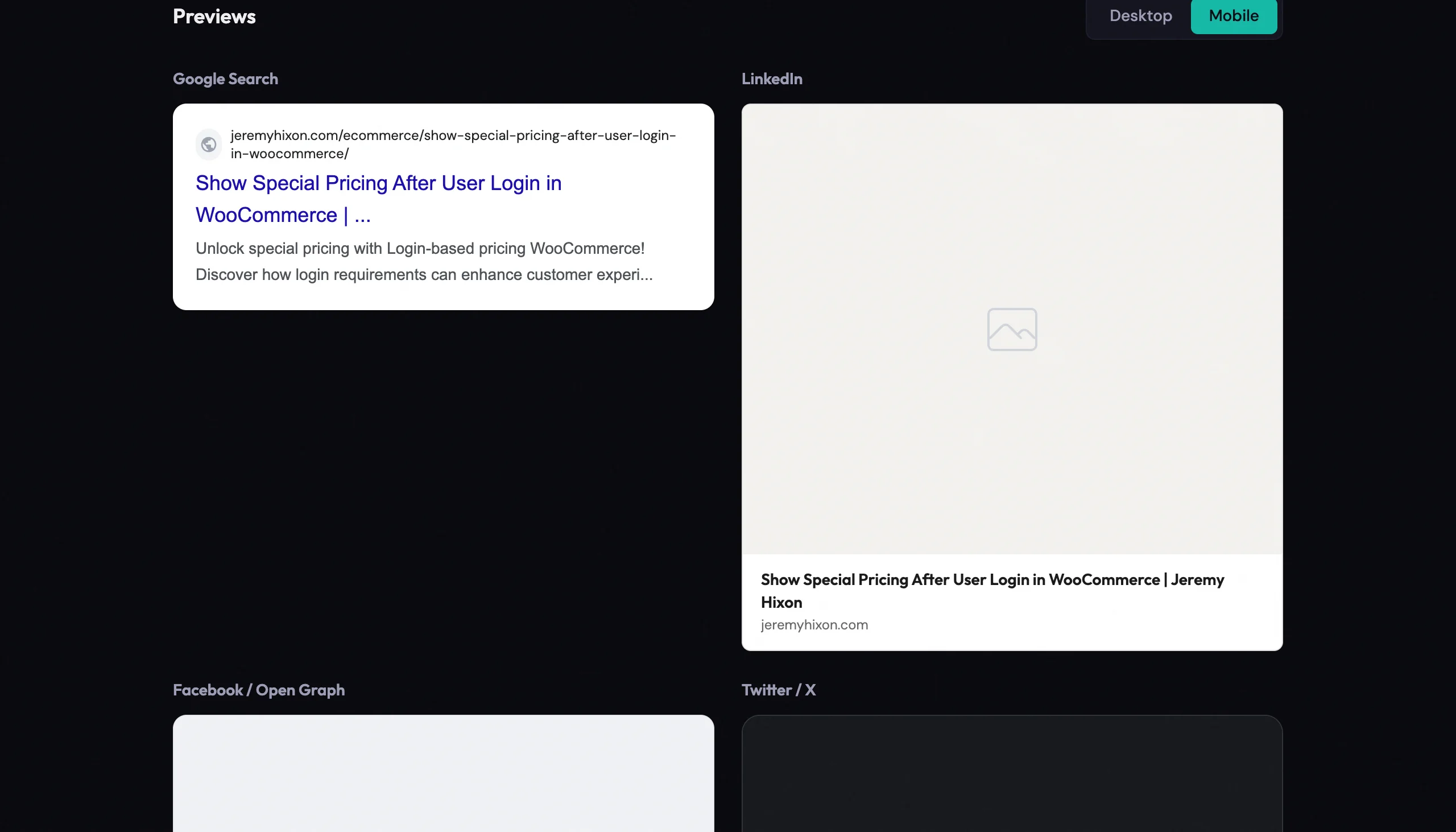
The Meta Tag Previewer puts it all in one place. Enter a URL (or type in your title, description, and image manually) and see how your content will appear on Google, Facebook, Twitter/X, and LinkedIn, all side by side.
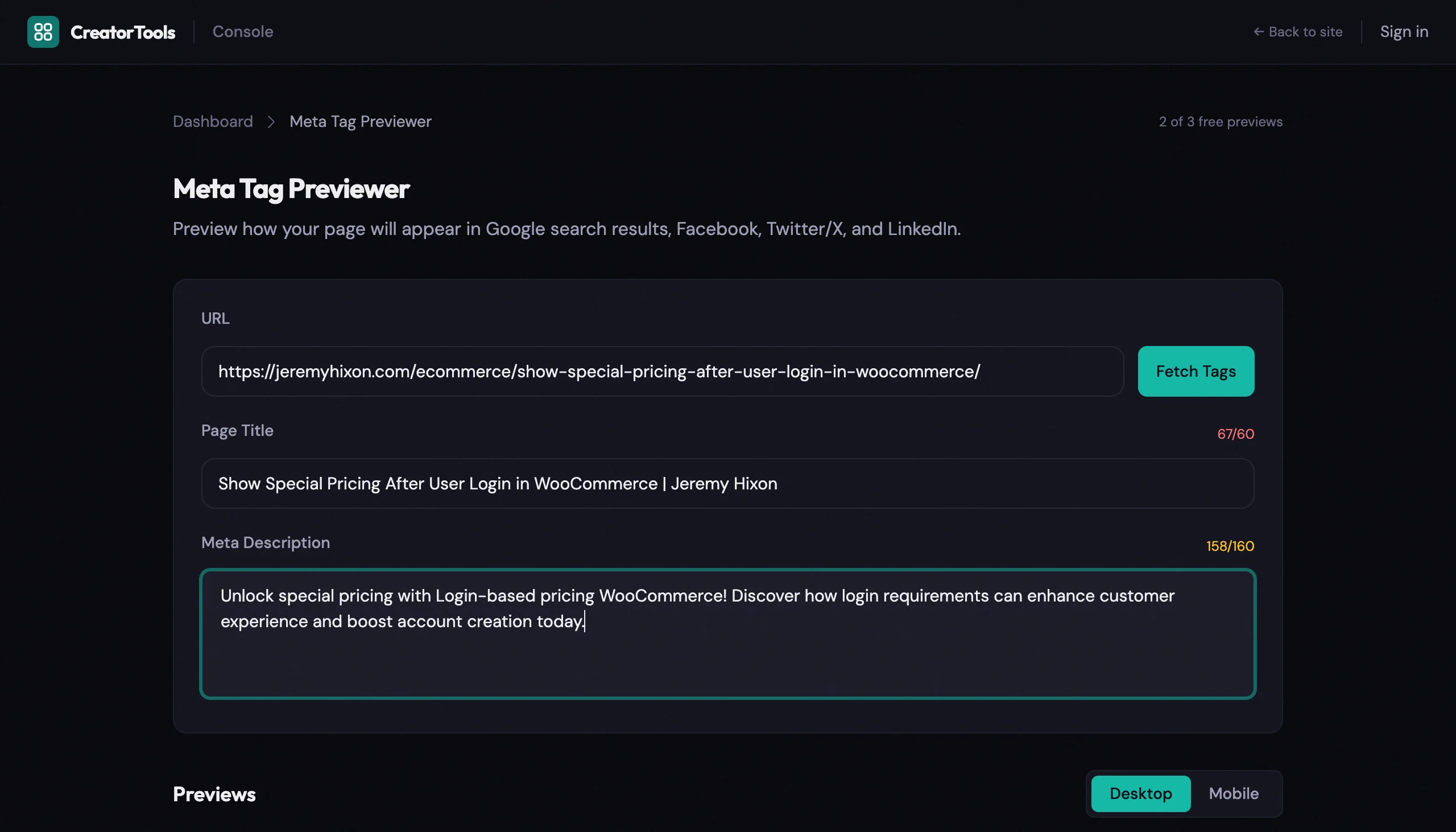
It shows you:
- Character counts with color-coded warnings when you’re approaching limits
- Desktop and mobile previews (truncation points are different, and they matter)
- Image rendering for each platform
- Missing tag warnings so you know what needs fixing
Toggle between desktop and mobile to see exactly where titles and descriptions get cut off on smaller screens.
No account required. No install.
Meta tags take five minutes to get right and cost you clicks every day you get them wrong. They’re the first impression your content makes on every platform, and right now, most creators have never once checked theirs. Now you know what to look for. Go check.